
How to use Rechargly when your firm runs on CCH Practice Management
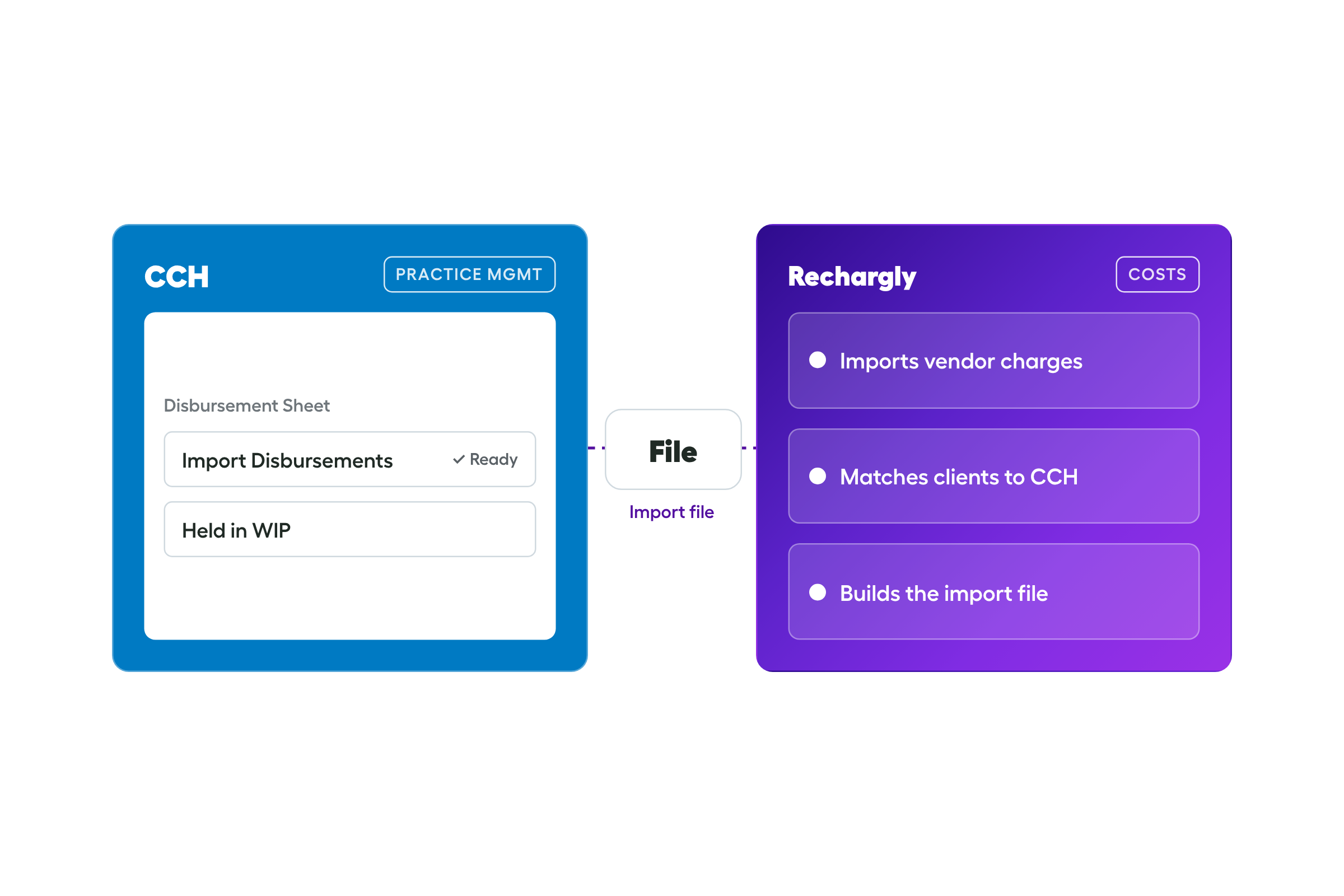
TL;DR. If your WIP lives in CCH Practice Management, the software you pay for on a client's behalf should be a disbursement on their assignment. The amounts are on the vendor invoice. The work is giving every line the right client code, assignment and task. You can build the import file yourself, or let Practice Connect build it. You still do the import in CCH.
The jobs that need doing
Whichever setup you pick, these jobs exist:
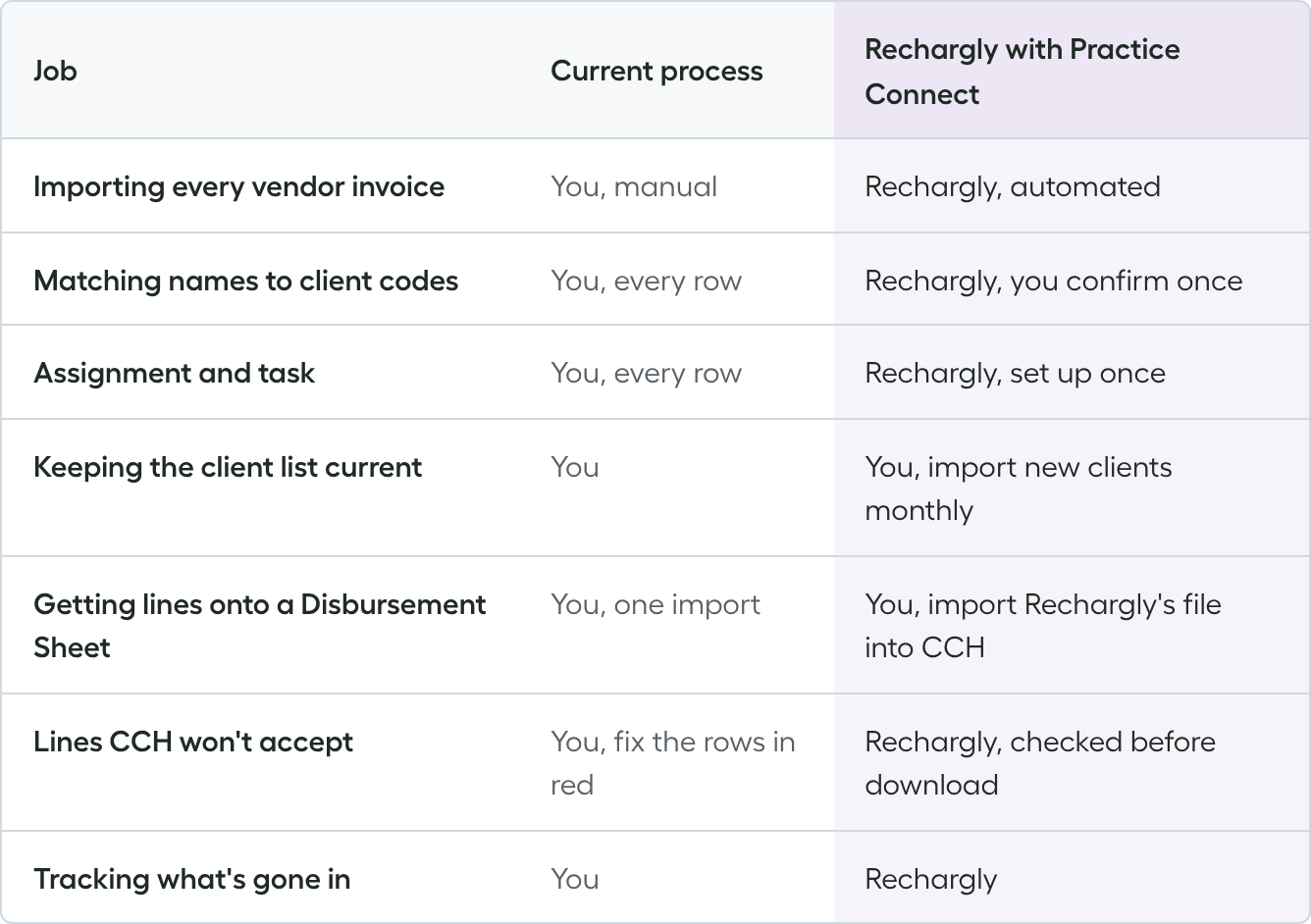
- Importing every vendor invoice
- Matching client names to CCH client codes
- Adding the right assignment and task to every line
- Keeping the list current as clients join and leave
- Getting the lines onto a Disbursement Sheet
- Fixing the lines CCH won't accept
- Keeping track of what's gone in, and what changed afterwards
The two setups differ in who does them.
Current process: build your own import file
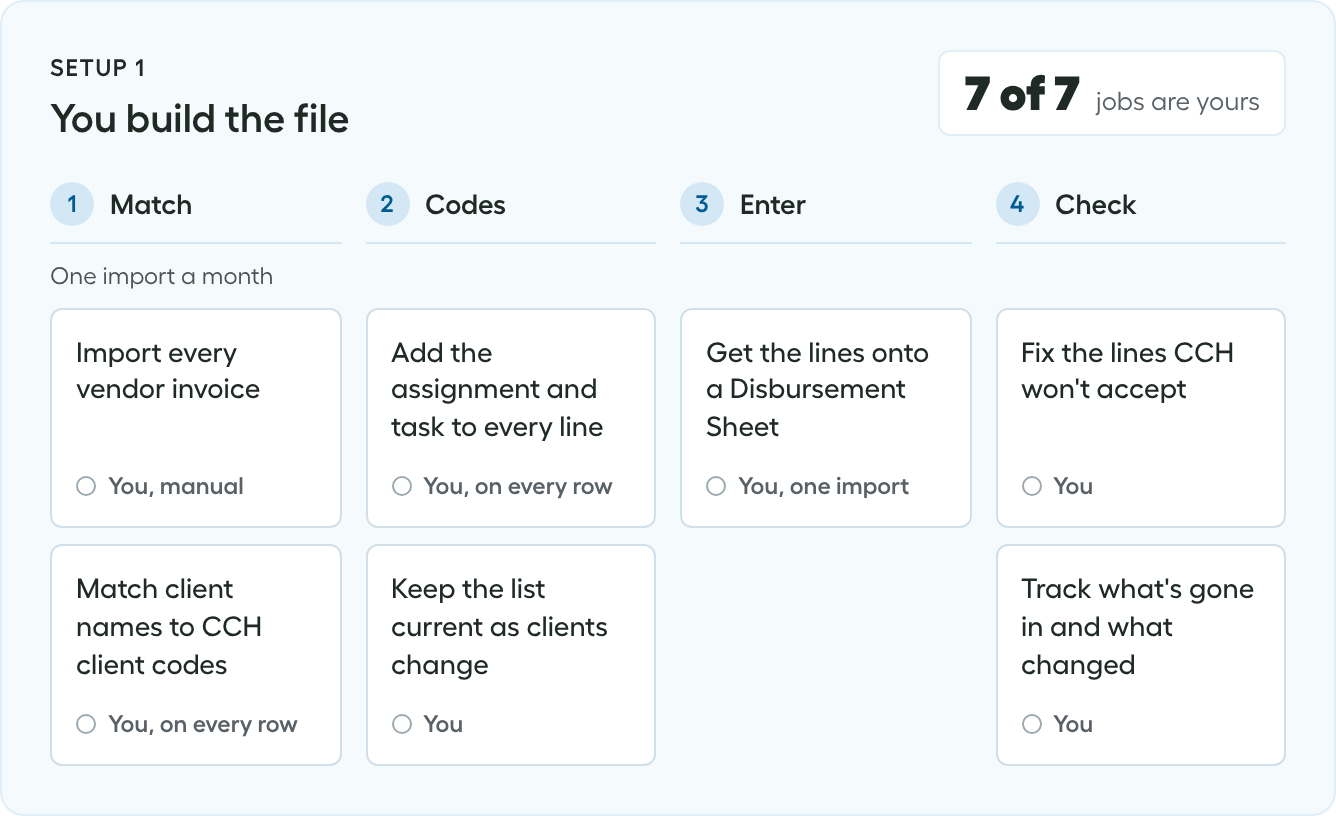
CCH can import disbursements from an Excel file. You export the vendor invoice, copy it into CCH's disbursement template, open a Disbursement Sheet and click Import Disbursements. The import is quick. Getting the spreadsheet right is the work.
You do
- Export the vendor invoice to a spreadsheet
- Match each client to CCH, by client code or by name exactly as CCH holds it
- Add the client code, assignment and task to every row, under CCH's column headings
- Update the list when a client joins or leaves
- Fix the rows CCH shows in red, or leave them out
- Submit the sheet
CCH does
- Checks each row's client, assignment and task before it imports
- Adds the rows to the open Disbursement Sheet
Best for: firms with someone confident in Excel and a client list that doesn't change much.
Trade-off: it all rests on the spreadsheet. If two clients share a name, CCH adds the line to the first match without a warning. The import option also has to be switched on in CCH first.
Rechargly with Practice Connect
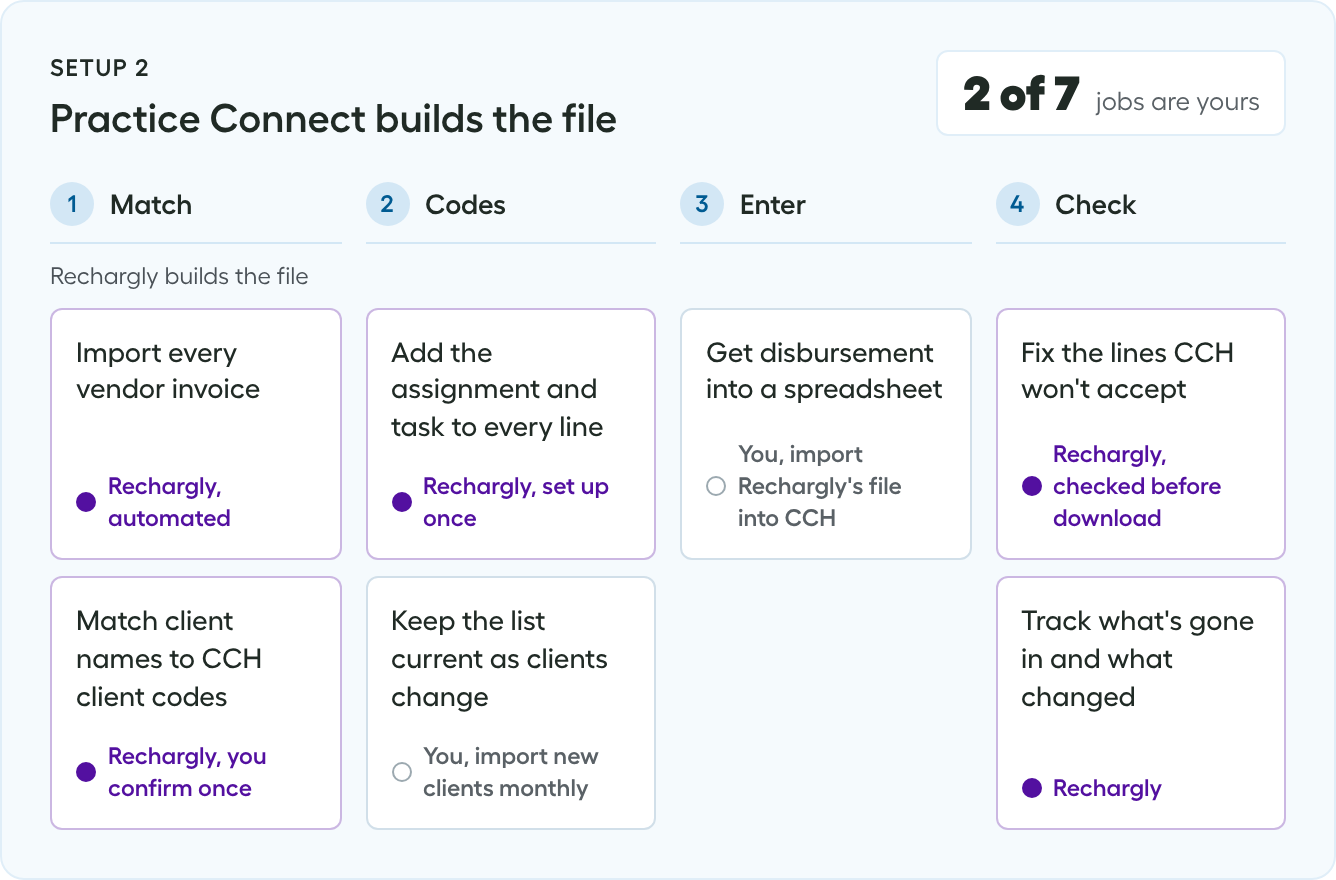
The costs come into Rechargly automatically. It matches each charge to a CCH client and puts the client code, assignment and task on every row. You get one export for each billing period and bring it into CCH the way you do today. You don't build the spreadsheet, work out the mapping or chase name changes.
You do
- Once: upload your CCH client list, review the client matches, and set a default assignment and a task code for each vendor
- Each period: download the file, import it into CCH and submit the sheet
- Mark the period as imported in Rechargly
- Each month, import any new clients and map them, then export the new file
Rechargly does
- Reads the vendor invoices and works out which client each charge belongs to
- Matches those clients to your CCH client codes, so names only need confirming once
- Puts the client code, assignment and task on every row, with the date, cost, charge and a description
- Sets the charge to what the client will be billed, including your markup. Costs you absorb go in at zero
- Won't let you download a period that would fail in CCH, such as a vendor with no task code or a client with no CCH code
- Tells you when a vendor invoice includes a client that isn't in CCH yet
- Records which costs went into CCH, and flags a period if anything changes after you've imported it
CCH does
- Imports the rows onto the Disbursement Sheet
- Holds each disbursement in unbilled WIP until you bill it
Best for: firms on CCH that are building this spreadsheet by hand, or not recovering the costs at all.
Trade-off: it isn't a live sync. You download, import and confirm each period, and Rechargly can't see what's been billed in CCH. If you keep taking on clients, you also import the new ones into Rechargly and map them before you export, once a month.
Who does what
The bottom line
- Your own import file loads in one go, but someone still checks every name and code every month.
- Rechargly with Practice Connect takes the spreadsheet away. Clients are matched once, the codes are set once, and you're left with one import.
Setup with Practice Connect is uploading your client list, checking the matches and setting your assignments and task codes once.
FAQs
Does Rechargly integrate directly with CCH Practice Management?
No. Rechargly doesn't connect to CCH Practice Management directly, so nothing syncs automatically. Rechargly does everything up to the import: it builds the disbursement file, you import it into CCH and confirm it in Rechargly.
Is this for CCH iFirm?
No. This is for CCH Practice Management, the on-premise product.
Do I need to give Rechargly my CCH login?
No. There's no login or key to enter. You pick CCH as your practice manager in Rechargly and upload your client list.
How does Rechargly know my CCH clients?
You export your client list from CCH (Smart Reports, Client, Client List, Export to Excel) and upload the file as it is. Rechargly finds the right columns and shows you what will be added, changed or archived before anything is saved.
Do I still need to add client codes to a spreadsheet?
No. Once a client is matched, Rechargly puts their CCH client code, assignment and task on every row for you. You can search the Mapping page by client name or CCH client code to check any match.
What happens when I take on a new client?
When a vendor invoice includes an organisation with no CCH client yet, Rechargly shows a banner and emails you to upload a fresh client list. Clients missing from a new upload are archived, never deleted, so your mappings are kept.
What if something changes after I've imported a period?
Rechargly flags the period as changed since it was imported, so nothing is missed or doubled up. That covers a late invoice, an edited cost or a remapped client.
Does Rechargly know what's been billed in CCH?
No. Whether a cost has been billed lives in CCH. Rechargly tracks what was exported and what you confirmed as imported.