
How to use Rechargly when your firm runs on Xero Practice Manager
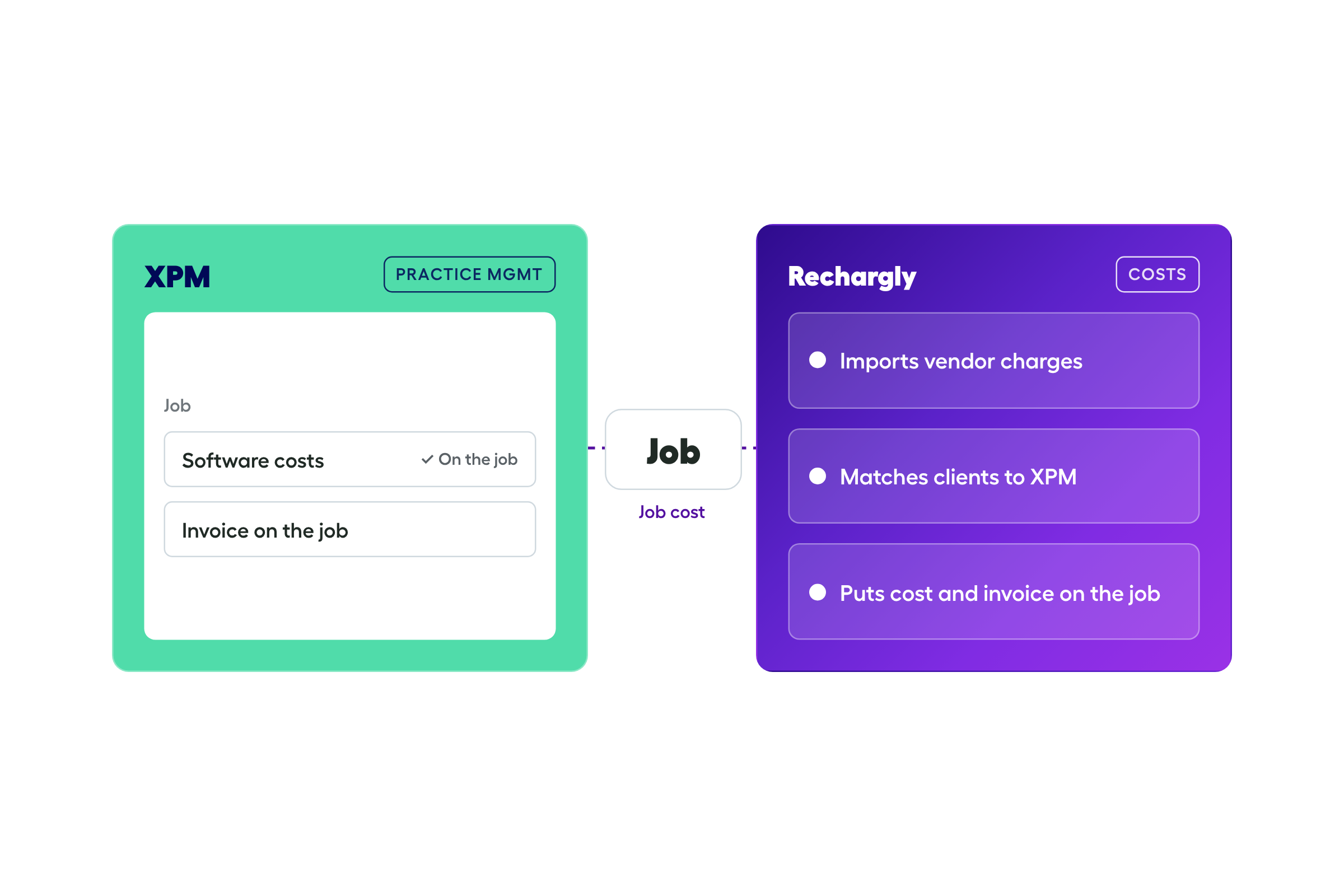
TL;DR. If your jobs and WIP live in Xero Practice Manager (XPM), the software you pay for on a client's behalf should sit as a cost on their job. The amounts are on the vendor invoice. The hard part is getting each line onto the right client and the right job. You can build the import yourself, or let Practice Connect do it. Practice Connect also puts the invoice on the same job, so you see cost and revenue together.
XPM is built around jobs, time and billing. Vendor invoices don't come that way. One invoice can cover hundreds of clients, and each line has a client name and no job number.
So every month someone works down a spreadsheet. They check the names against XPM, add or confirm a job number to each line and make sure the job is still open. One wrong number and the cost lands on the wrong job, or doesn't land at all.
The jobs that need doing
Whichever setup you use, someone has to do these jobs:
- Importing every vendor invoice
- Matching client names between the vendor invoice and XPM
- Finding the right job number for every client
- Setting up a job where a client doesn't have one, and a new one each period
- Getting the costs onto the jobs
- Checking each cost landed on the right job
- Checking the invoice lands on the job, so WIP clears
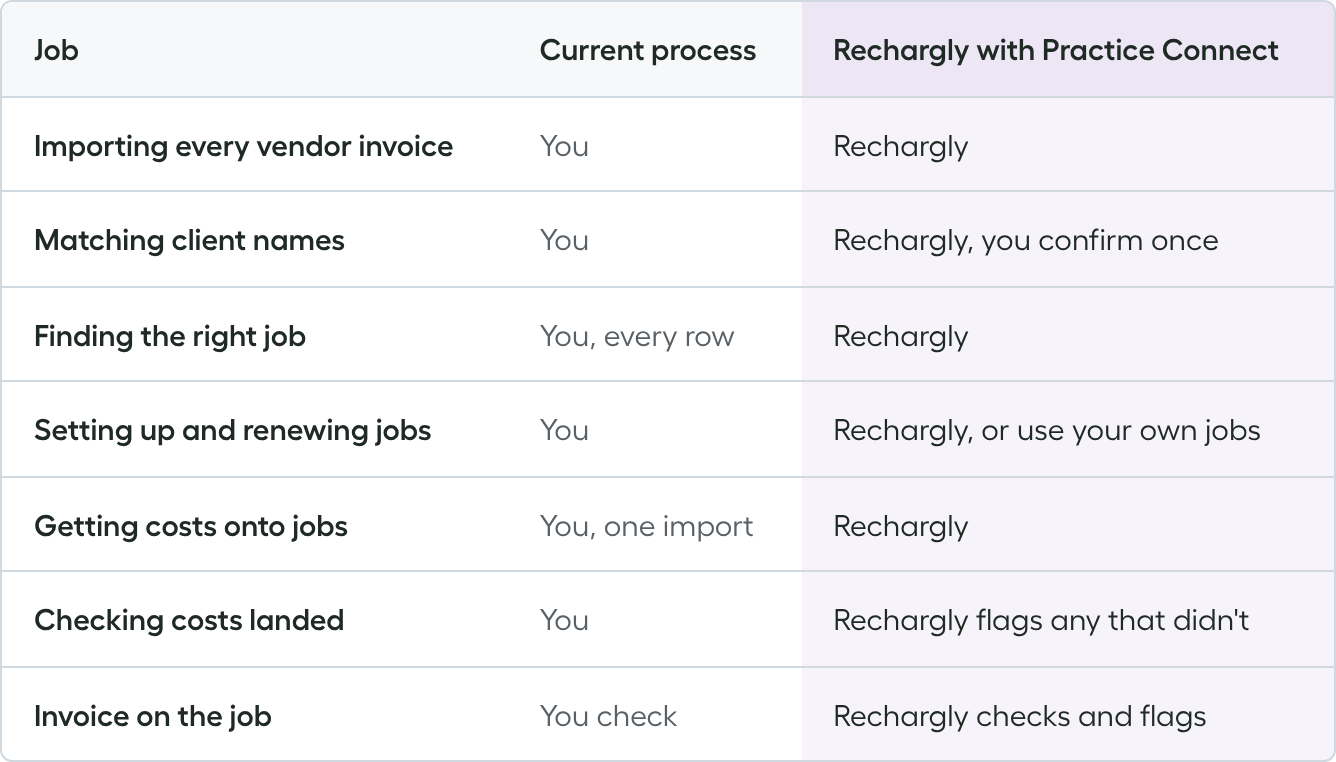
The two setups differ in who does them.
Current process: import job costs from a spreadsheet
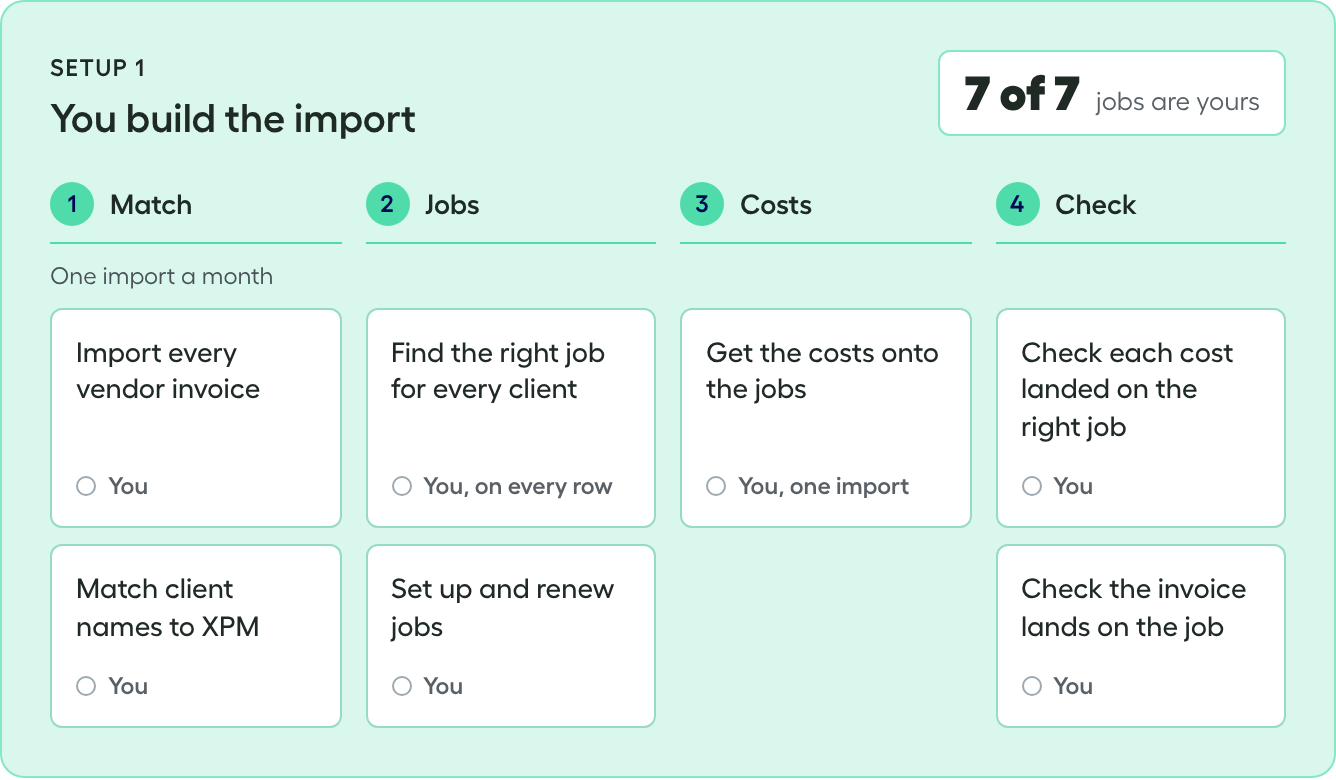
You build a spreadsheet from the vendor invoices and load the costs from a file. Export the vendor invoice, put the job number on every row and upload it. The upload is quick. The spreadsheet is the slow part.
You do
- Export the vendor invoice to a spreadsheet
- Check each client name against XPM, because vendors and XPM rarely spell them the same way
- Add the job number to every row, and check it's a job that's still open
- Update the list when a client joins, leaves or moves to a new job
- Import the file, then check the costs landed where you expected
XPM does
- Adds each row to its job as a cost
- Holds each cost in WIP until it's invoiced
Best for: firms with someone confident in spreadsheets and a client list that doesn't change much.
Trade-off: it all rests on the spreadsheet. A wrong job number puts the cost on the wrong job, and someone has to spot it.
Rechargly with Practice Connect
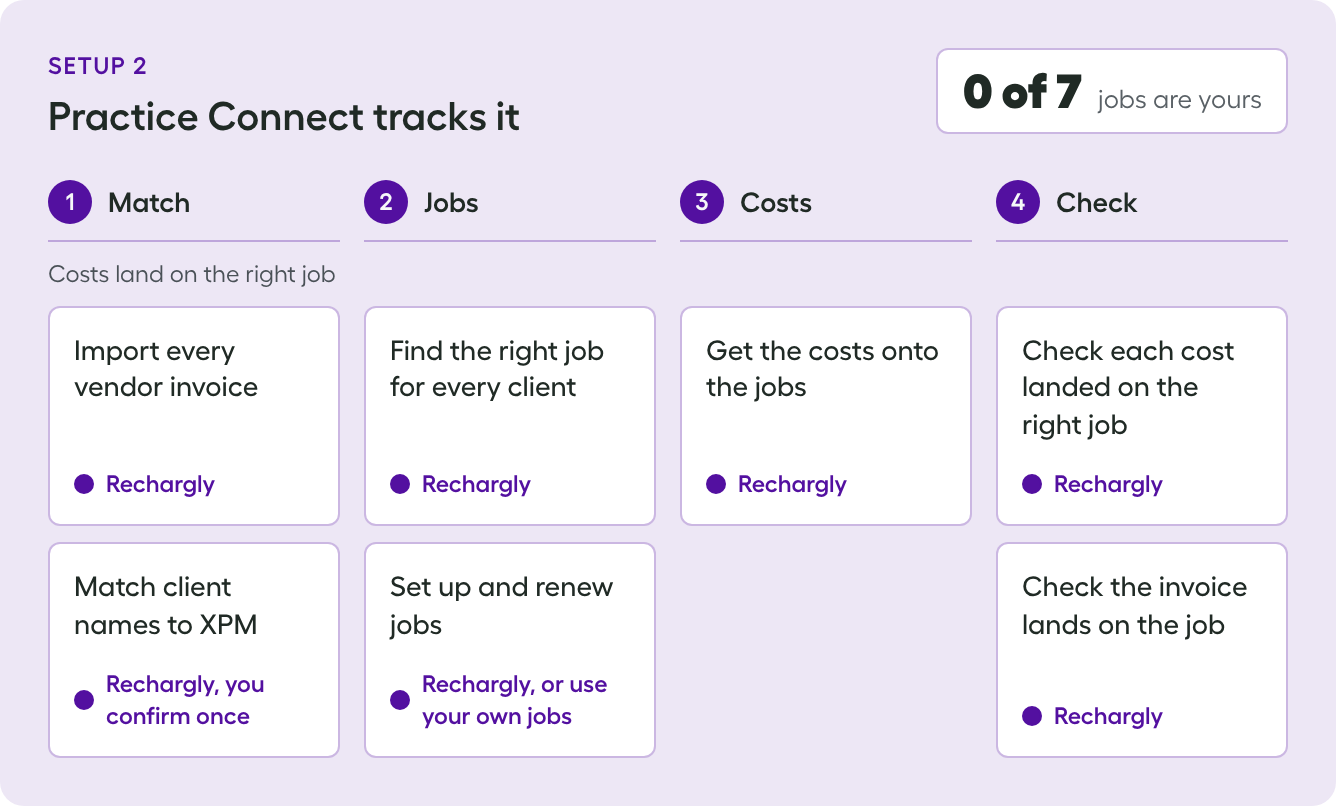
You connect XPM by signing in with Xero. Rechargly matches its clients to your XPM clients once, and from then on it knows which job each cost belongs to. There's no spreadsheet and no job numbers to look up.
You do
- Review the client matches once. Only clients with recharges need mapping, not the whole practice
- Choose how jobs work: Rechargly creates and renews them, or you pick one of your own jobs for each client
- Send a new client's first charge for tracking. After that, later charges flow through automatically
- Fix the odd invoice XPM files against the client instead of the job. Rechargly flags it and walks you through it
Rechargly does
- Reads the vendor invoice and works out which client each line belongs to
- Matches those clients to your XPM clients, so names only need confirming once
- Creates one job per client per period and renews it when the period rolls over
- Adds each cost to the job with a description, the cost and the price you'll bill, including your markup
- Tells you when a cost can't land, such as a closed job or a WIP lock date
- Puts the XPM job number in the invoice reference, so XPM files the invoice against the job
- Checks each invoice made it onto the job and flags any that didn't
- Closes the job once all its costs have been invoiced
XPM does
- Holds each cost in WIP until it's invoiced
- Picks up the invoice overnight and files it against the job, which clears the WIP
Best for: firms that want software costs in WIP without the spreadsheet.
Trade-off: there's a one-off setup, and it isn't instant. Costs sync every few minutes. Invoices reach the job on XPM's overnight sync, so give it about 24 hours.
The invoice goes on the same job
Getting the cost onto the job is half of it. To see job profitability, the invoice has to be on the same job, so cost and revenue sit side by side.
When Rechargly raises the invoice in Xero, it puts the XPM job number in the invoice reference. XPM picks the invoice up overnight and files it against the job. That clears the WIP, and you can see what you spent and what you billed in one place. Give it about 24 hours.
Rechargly checks that each invoice made it onto the job and flags any that didn't.
Repeating invoices and fixed packages
This isn't only for software. If you bill fixed packages each month or your own fees on repeating invoices, the same rule applies. XPM needs the job reference on the invoice.
In Xero, someone sets that reference by hand on every repeating invoice. In Rechargly it's automated, and it updates year after year. You can push your fees through to XPM the same way, using repeating charges in Rechargly.
Who does what
The bottom line
- Current process works if someone in the firm is confident in spreadsheets. They still check every name and job number every month.
- Rechargly with Practice Connect takes the spreadsheet away. Clients are matched once, each cost goes to the right job, and the invoice follows.
If you're on the current process, connecting is one sign-in with Xero. You map the clients that have recharges and choose your job settings once.
FAQs
What is Practice Connect?
Practice Connect tracks your clients' software costs against a job in Xero Practice Manager. It's separate from billing the client through Recharges. Recharges on-charges the software. Practice Connect puts the cost, and the invoice, on the job so WIP is right.
Does Rechargly connect directly to Xero Practice Manager?
Yes. You sign in with Xero and approve access. Rechargly then pulls your XPM clients, staff, job states, job categories and costs, and keeps them in sync.
Do I have to map every client in my practice?
No. Only clients that have recharges need mapping. Rechargly matches them to your XPM clients automatically and you confirm or fix the matches on the Mapping page.
Can I use my own XPM jobs?
Yes. You pick one job for each client and every cost goes there. An annual job that can close works best. Or Rechargly creates one job per client per period, renews it and closes it for you.
How quickly do costs show up in XPM?
Costs sync every few minutes. It isn't real time.
What happens if a cost arrives for a job that's already closed?
Your settings decide. Rechargly either reopens the job or moves the cost to the next one.
I invoice from XPM. Does that still work?
Yes. Rechargly reads those invoices back. Once a cost has been invoiced it drops out of WIP in Rechargly and is locked, so it's never changed or sent again.
What about software I don't recharge?
You can mark a cost as non-billable in Practice Connect. It's tracked, and the client isn't charged.